
Fast internet means little if the Wi-Fi dies in the bedroom, drops on video calls, or crawls upstairs. Most coverage problems are not caused by your internet plan — they are caused by router placement, building materials, and congestion. This guide walks you through setting up (or fixing) a home Wi-Fi network that actually covers your whole house.
Start With What You Have
Before buying anything, take stock of your current setup. Where is the router right now? How old is it? Which rooms have problems, and what are you doing in them — video calls, streaming, gaming, or just browsing? Coverage fixes are targeted: the answer for a dead bedroom office is different from the answer for a laggy living-room TV. A quick map of where the pain is saves you from buying the wrong solution.
Also check what your internet plan actually delivers at the router. Plug a laptop into the router with an ethernet cable and run a speed test — that number is your ceiling. If the wired speed is fine but Wi-Fi is slow, the problem is purely your wireless setup, and everything below will fix it. If the wired speed is bad too, call your provider first; no Wi-Fi trick overcomes a broken connection.
Step 1: Put the Router in the Right Place
Placement is the single biggest factor in coverage, and it costs nothing to fix. Wi-Fi radiates outward from the router, so a router stuffed in a corner covers mostly the outside wall.
The central, elevated rule
Place the router as close to the center of your home as possible, elevated on a shelf rather than on the floor. Signals travel outward and slightly downward, so height helps. Keep it out in the open — inside a cabinet, behind a TV, or under a desk, the signal is absorbed before it starts.
Watch out for signal killers
Concrete, brick, and stone walls absorb Wi-Fi far more than drywall. Metal appliances, mirrors, and large aquariums also block signals. If the router sits next to the microwave or the water heater, move it. Even a few feet of separation from dense obstacles makes a measurable difference.
Antennas: small adjustments, real gains
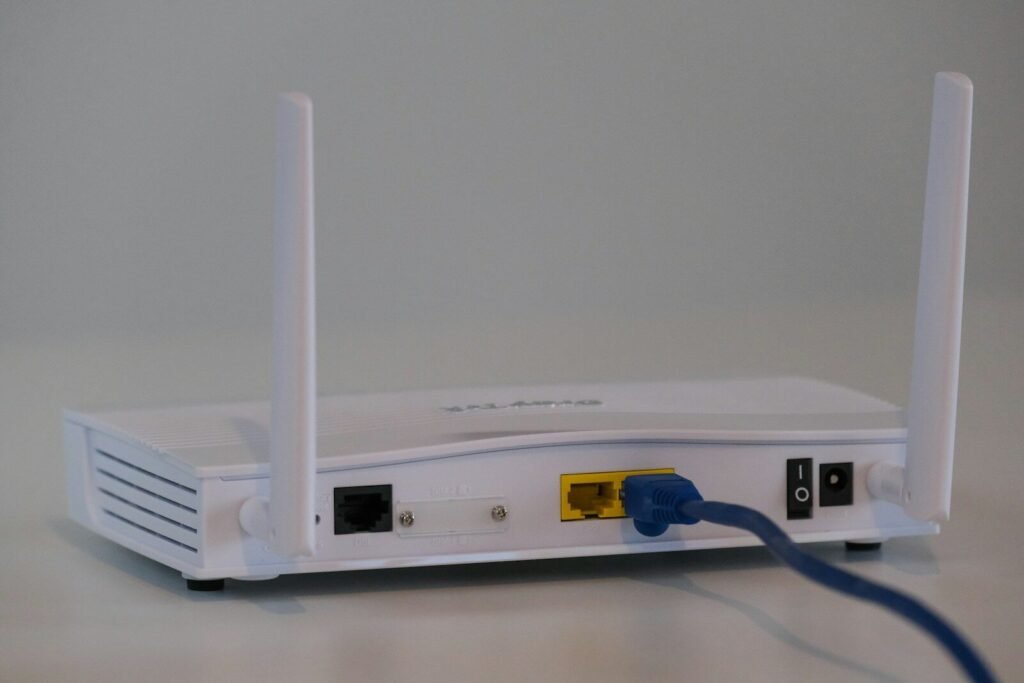
If your router has external antennas, position them thoughtfully: one vertical and one horizontal covers multiple floors better than all-vertical, because devices above and below the router receive the signal differently. It is a small tweak, but in a two-story home it can be the difference between a working upstairs office and a dead one.
Step 2: Choose the Right Bands and Channels
Modern routers broadcast on two or three frequency bands, and using them well multiplies your effective coverage.
2.4 GHz vs 5 GHz vs 6 GHz
The 2.4 GHz band travels farther and passes through walls better, but it is slower and more crowded. The 5 GHz band is much faster over short distances. If your router offers 6 GHz, it is the fastest of all but barely passes through a single wall. Let devices use the band that suits their location: 5 GHz near the router, 2.4 GHz at the far corners.
Let the router pick channels automatically — mostly
Neighboring networks on the same channel cause congestion, especially on 2.4 GHz. Most routers auto-select the clearest channel at startup, which is fine for most homes. If speeds collapse at certain times of day, a manual channel scan in the router’s app can help — but do not obsess; placement matters far more than channels.
Step 3: Extend Coverage the Right Way
When one router cannot reach the whole house, you have options — and they are not equal.
Mesh systems: the best fix for most homes
A mesh kit places two or three units around the house that act as one seamless network. Your phone roams between them without dropping, and setup takes minutes through an app. For multi-story homes or long layouts, this is the most reliable solution and the one worth buying first.
Extenders: cheap, but with catches
Plug-in range extenders repeat the signal, but they typically halve the speed and create a separate network name you must switch between manually. They work for a single dead corner on a budget, but they are a bandage, not a fix.
Wired backhaul: the gold standard
If you can run an ethernet cable (or use existing coaxial wiring with adapters) to a second access point, you get full speed everywhere. Even one wired access point at the far end of the house transforms coverage. Powerline adapters, which carry network signals over electrical wiring, are a decent middle ground where cabling is impossible.
Step 4: Secure and Tune the Network
A new network deserves a proper setup pass: it protects you and keeps performance consistent.
Lock it down
Change the default admin password on the router itself, set a strong Wi-Fi password, and use WPA3 encryption if your router and devices support it (WPA2 is fine otherwise). Create a separate guest network for visitors and smart-home gadgets — it keeps strangers and cheap IoT devices away from your computers and phones.
Update firmware and restart occasionally
Router firmware updates fix security holes and often improve stability, so enable automatic updates if offered. A monthly restart clears memory leaks that cause mysterious slowdowns — many routers can schedule this automatically overnight.
Tame the bandwidth hogs
If one person’s 4K streams or giant game downloads choke everyone else, look for Quality of Service (QoS) settings in the router app and prioritize video calls and work devices. You do not need to micromanage — just make sure real-time traffic wins over background downloads.
Step 5: Test and Verify Real Coverage
Do not trust the signal bars — measure. Walk through your house with a speed-test app and note speeds in each room. You want usable speeds everywhere you actually use devices, not just next to the router.
What to do about remaining dead zones
If one room still lags, try nudging the router or mesh node a few feet, rotating it, or raising it higher. Test again after each change. If a dead zone survives everything, that is the spot for an extra mesh node or a wired access point — targeted fixes beat blanket upgrades.
The Bottom Line
Central, elevated placement; the right band for the right distance; a mesh system or wired access point for big homes; a secured, updated router. Do those things and the vast majority of home Wi-Fi complaints disappear.
Frequently Asked Questions
Do I need a new router, or is my old one fine?
If your router is more than five years old, an upgrade usually helps — newer standards handle many devices far better. But try placement and settings first: a well-placed older router often beats a poorly placed new one.
Should I combine the 2.4 GHz and 5 GHz networks into one name?
Most modern routers do this by default (band steering) and it works well — devices pick the best band automatically. Separate names give you manual control, which helps mainly for smart-home devices that only support 2.4 GHz and get confused during setup.
How many mesh nodes do I need?
Start with the kit’s default — usually two or three units for an average home. Place them halfway between the main router and the dead zones, not inside the dead zones themselves. Add one more only if testing shows a gap remains.
Will a Wi-Fi extender slow down my network?
An extender rebroadcasts on the same channel, which typically cuts throughput roughly in half for devices connected through it. It is acceptable for light use in one corner, but a mesh node or wired access point is better for anything demanding.
Does the internet plan affect Wi-Fi coverage?
No — your plan sets the maximum speed coming into the house; coverage is about distributing it. Upgrading the plan will not fix a dead bedroom. Fix the Wi-Fi first, then decide if you actually need more speed.
Where should I never put the router?
In a closed cabinet, on the floor behind furniture, next to the microwave or a large mirror, or at one far corner of the house. Each of those can easily cost you a room or two of coverage.
Why is Wi-Fi slower upstairs?
Signals weaken passing through floors, especially concrete ones, and most routers sit on the ground floor at one end of the house. Move the router higher and more central, or add a mesh node on the upper floor roughly above the main router — vertical alignment between units gives the cleanest link.