
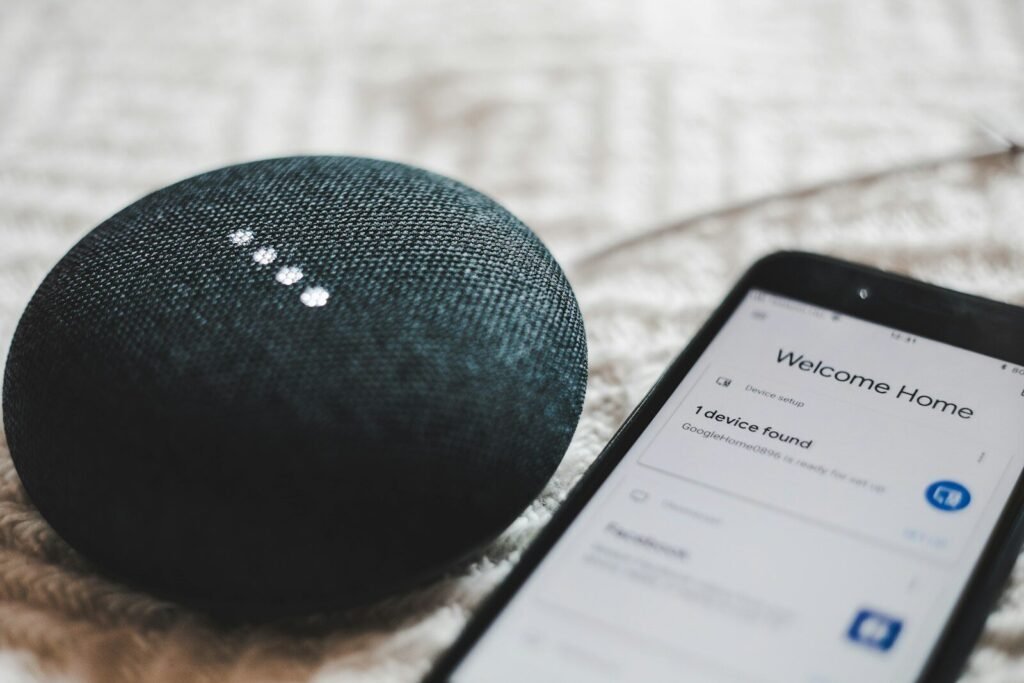
Your voice is becoming one of the fastest ways to get things done on your devices. AI voice assistants now set reminders, answer questions, control smart homes, and draft messages, while AI transcription tools turn meetings, lectures, and interviews into searchable text in minutes. If you have only ever used a voice assistant to set a timer, you are barely scratching the surface. This guide shows you how to use both kinds of voice AI well — what to ask, which tools fit which job, and how to fix the annoying problems that make people give up.
Why Voice AI Got So Much Better
Voice assistants used to be glorified timers and trivia machines. Two things changed. First, speech recognition became dramatically more accurate thanks to large neural-network models trained on enormous amounts of spoken audio — today’s assistants understand natural phrasing, accents, and even mumbled speech far better than the rigid command lists of the past. Second, large language models gave assistants something like real comprehension: they can follow a multi-step request, remember context across a conversation, and answer open-ended questions instead of reciting search snippets.
Transcription made a similar leap. Modern speech-to-text systems handle overlapping speakers, background noise, and domain-specific vocabulary far better than older software. Tools that once produced gibberish from a phone call now deliver readable transcripts of hour-long meetings, complete with speaker labels and summaries. That matters, because the value of transcription is not just the words — it is turning spoken information into something you can search, quote, and share.
The Big Voice Assistants: Who Does What Best
You probably already have at least two of these installed. Here is what each one is genuinely good at.
Google Assistant (and Gemini)
Google’s assistant has long been the strongest at understanding complex questions, thanks to Google’s search and language technology. It handles multi-turn conversations well — you can ask a follow-up question without repeating the subject — and it integrates deeply with Gmail, Calendar, Maps, and smart home devices. If you live in the Google ecosystem, this is the natural choice.
Siri
Siri’s strength is the Apple ecosystem. It controls HomeKit devices, sends iMessages, sets up Focus modes, and works hands-free across iPhone, Mac, Apple Watch, and HomePod. Apple processes more of Siri’s requests on-device than its rivals, which is a privacy plus and keeps basic functions working offline. Its general knowledge has historically lagged Google’s, but it keeps improving.
Alexa
Amazon’s Alexa remains the smart-home champion: it supports a huge range of third-party devices and its “Routines” let you trigger multi-step automations with one phrase (“Alexa, good night” can lock the door, dim the lights, and set tomorrow’s alarm). It is also excellent for shopping-related tasks if you are an Amazon customer. Echo speakers double as affordable smart speakers, which made Alexa the default for many households.
The honest truth: for everyday tasks — timers, reminders, weather, music, smart-home control — all three are fine. Pick the one that matches the devices you own rather than agonizing over which is “smartest.”
Getting Real Work Done With Voice Assistants
Here are workflows that actually save time, beyond the timer-and-weather basics.
Run Your Schedule Hands-Free
Dictate calendar events while you are doing something else: “Add lunch with Priya tomorrow at noon at the downtown cafe” usually parses into a correct event. Ask “what does my day look like?” while getting dressed. Set location-based reminders — “remind me to call the dentist when I get to work” — which fire only when you arrive. The trick is to use the assistant for capture, not management: speak the thought the moment it appears, then review and tidy your lists later.
Dictate Messages and Notes
Voice dictation is now accurate enough for real writing. On your phone, tap the microphone icon on the keyboard and speak emails, texts, and notes naturally, including punctuation commands (“new paragraph,” “comma”). It is typically two to three times faster than typing on a phone keyboard. For longer notes, many people now dictate a rough draft by voice and clean it up by hand — a workflow that feels awkward for a day and then becomes second nature.
Control Your Smart Home by Voice
Group devices into rooms and give them simple names in the assistant’s app, because the names are the commands you will speak. Then build routines: one phrase that runs a sequence. Good routines to start with: a morning briefing (weather, calendar, news), a “movie night” scene (dims lights, turns on the TV), and a leaving-home routine (turns off everything). If a command fails, rephrase rather than repeating it louder — the assistant rarely heard you wrong; it more likely misunderstood which device you meant.
Use Voice While Driving, Cooking, and Working
Voice assistants shine when your hands are busy. In the car, ask for navigation, read and reply to messages, and control music without touching the phone. In the kitchen, convert measurements (“how many grams in two cups of flour?”), set multiple named timers (“pasta timer” vs “oven timer”), and add items to a shopping list as you run out of them. At your desk, use voice to start focus timers, look up quick facts, and dictate meeting notes between calls.
AI Transcription Tools: Turning Speech Into Text
Transcription is where voice AI delivers its biggest productivity payoff. A one-hour meeting that would take four hours to transcribe by hand becomes readable text in minutes, searchable forever.
Meeting Transcription
Dedicated meeting tools can join your video calls (or record in-person meetings from your phone) and produce a transcript with speaker labels, a summary, and action items. They work best when each participant uses a decent microphone and people avoid talking over each other. Review the summary right after the meeting while it is fresh — correct any names or terms the AI garbled — and then share it. Teams that do this stop needing someone to take minutes, and nobody has to rely on memory for who promised what.
Interviews, Lectures, and Research
Students and journalists get enormous value here. Record interviews (with permission — more on that below) and transcribe them so you can search for quotes instead of re-listening to audio. For lectures, a transcript plus an AI-generated summary makes revision dramatically faster: you can find the exact explanation of a concept in seconds. A practical tip: the AI’s summary is a starting point, not a replacement for your own notes — the act of summarizing is part of learning.
Voice Notes and Personal Dictation
Many people think faster than they type. Dictating a brain dump — ideas, journal entries, first drafts — captures thoughts that would evaporate while typing. Apps that transcribe on the fly, or voice-memo tools with automatic transcription, turn rambling spoken notes into editable text you can refine later. Try it for a week: speak your to-do list each morning, speak reflections at night, and watch how much more of your thinking gets captured.
Accessibility Wins
Transcription is also an accessibility superpower. Live captions help in noisy environments and for anyone hard of hearing; accurate transcripts make audio content usable for deaf colleagues and searchable for everyone. If you publish podcasts or videos, publishing a transcript widens your audience and helps search engines find your content.
Getting Accurate Results: Practical Tips
Voice AI is good, but it is not magic. These habits make the difference between frustration and flow.
Speak naturally, not robotically. Modern systems are trained on conversational speech, so “set an alarm for seven” works better than over-enunciated commands. Pause slightly between distinct requests.
Reduce background noise. The single biggest accuracy killer is competing sound. Move closer to the microphone, close a window, or pause the music. For important recordings, a cheap lapel microphone beats any software fix.
Teach it names and terms. If the assistant keeps mangling a contact’s name or a technical term, check whether your tool lets you add custom vocabulary or correct the spelling once — many learn from corrections.
Check before you trust. Transcripts of names, numbers, and technical terms deserve a quick scan. A misheard dosage, date, or name in a medical or legal context is a real risk — treat AI transcripts as excellent first drafts, not final records.
Use the right tool for the job. A general voice assistant is fine for quick commands; a dedicated transcription service with speaker diarization (telling speakers apart) is worth it for meetings and interviews. Free tiers are generous for casual use, but professionals who transcribe hours weekly usually outgrow them.
Privacy: What Happens to Your Voice?
Voice data is sensitive, so it is worth knowing the trade-offs. Cloud-based assistants and transcription services send your audio to company servers for processing, where it may be stored and — depending on the provider’s settings — reviewed by humans to improve the service. Most providers let you review and delete your voice history, turn off human review, and auto-delete recordings after a set period. Take ten minutes to find those settings; the defaults usually favor the company’s data collection, not your privacy.
On-device processing is the privacy-friendly alternative: some assistants and transcription apps do the recognition locally on your phone or computer, so audio never leaves the device. This also works offline. If you regularly discuss sensitive topics — health, legal, business secrets — prefer on-device options or services with strong privacy commitments, and be cautious about which third-party transcription tools get access to your meetings.
One more rule with real legal weight: recording conversations has laws attached. Many places require the consent of everyone being recorded. Always tell participants you are recording or transcribing, get their agreement, and check your local rules. “The AI was listening” is not an excuse people accept gracefully after the fact.
Fixing Common Annoyances
It keeps mishearing you: check for background noise, speak a little slower, and make sure the right language and region are set — an accent mismatch tanks accuracy. Retrain any voice-match feature in a quiet room.
It activates when nobody called it: this “false trigger” problem is common with TV audio. Change the wake word if your device allows it, or move the speaker away from the TV.
Transcripts merge speakers: ask people to identify themselves at the start of a recording (“This is Marcus”) and avoid crosstalk. Some tools let you assign names to “Speaker 1” after the fact.
Smart home commands fail: simplify device names (“bedroom lamp” beats “the Philips Hue color ambiance bulb in the bedroom”), and check that the device is assigned to the right room in the app.
The Bottom Line
AI voice assistants and transcription tools reward the people who actually build them into routines. Start small: pick one voice workflow (dictating your to-do list, transcribing one weekly meeting) and use it for two weeks. Once the habit sticks, add another. Your voice is the interface you have had all your life — it is about time your devices learned to keep up with it.
Frequently Asked Questions
Which voice assistant is the best in 2026?
There is no universal winner. Google’s assistant leads on complex questions, Siri is best inside the Apple ecosystem with strong on-device privacy, and Alexa dominates smart-home compatibility and routines. Choose based on the devices you already own.
Are AI transcription tools accurate?
For clear audio with one speaker at a time, modern tools are highly accurate — good enough that light proofreading suffices. Accuracy drops with heavy accents, crosstalk, jargon, and background noise, so always review important transcripts.
Can I transcribe meetings for free?
Many transcription services offer free tiers with a monthly limit on minutes, which is plenty for occasional use. Built-in options — like your phone’s voice recorder with transcription, or captions in video-call apps — cost nothing and cover basic needs.
Is it legal to record and transcribe conversations?
It depends on where you are: some jurisdictions require only one party’s consent, others require everyone’s. Always inform participants before recording, get their agreement, and check your local laws when in doubt.