
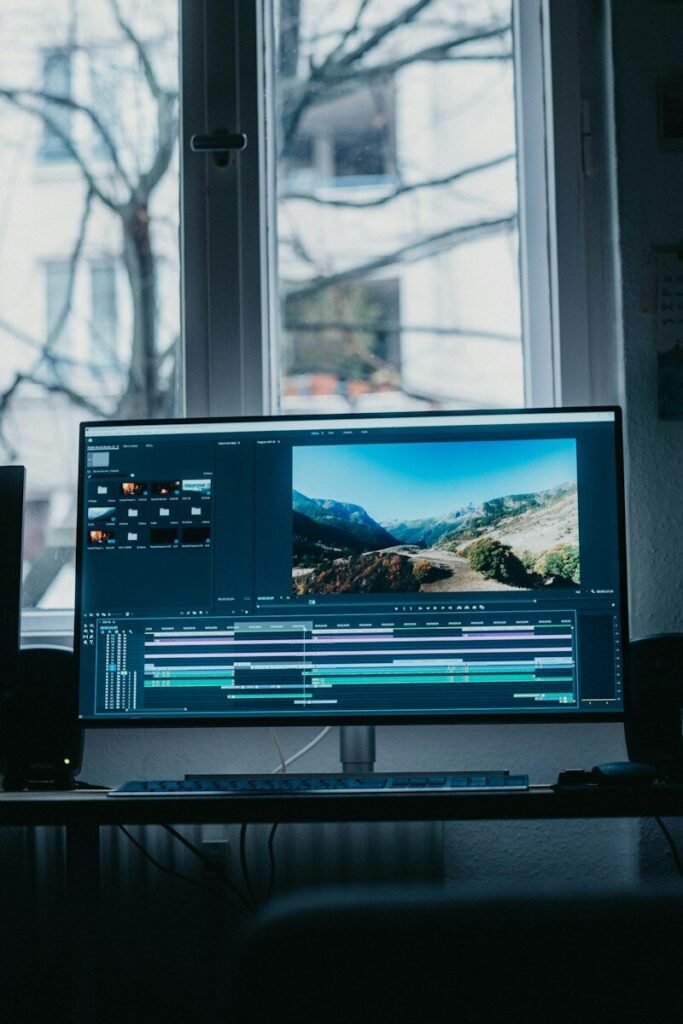
Whether you are showing a friend how to change a setting, reporting a bug, recording a gameplay highlight, or making a tutorial, screen recording is one of the most useful skills on any device. Every major platform now includes a free built-in recorder, so you rarely need to install anything. This guide covers the exact steps for Windows, Mac, iPhone, and Android — plus how to capture good audio, what to do when recording goes wrong, and how to edit and share your clips.
Before You Record: Set Up for Success
A few minutes of prep makes your recordings dramatically better. Close or hide anything private: messaging apps with notifications, open browser tabs with personal info, and your email inbox. Turn on Do Not Disturb so a text preview does not pop over your recording. If your tutorial involves typing passwords, log in beforehand or use a test account. Decide whether you need audio — silent bug reports are fine without it, but tutorials are far more useful with narration.
Check your storage and permissions
Video files get large fast — a few minutes of high-resolution recording can use hundreds of megabytes. Make sure you have at least a gigabyte or two free before a long session. On phones, also confirm the recorder has microphone permission if you plan to narrate, which you can check in system settings.
Windows: Snipping Tool and Xbox Game Bar
Windows has two built-in recorders, and most people should start with the Snipping Tool. Open it from the Start menu, switch from the screenshot mode to the video camera mode, and choose the area you want to capture. Hit record, do your thing, and save the MP4 file when you are done.
Xbox Game Bar for quick captures
Press the Windows key plus G to open the Xbox Game Bar overlay, which works even though it sounds gaming-focused. It is perfect for capturing an app window quickly without opening anything first. The default shortcut Windows key plus Alt plus R starts and stops recording from anywhere. Game Bar is great for speed, but it records one window at a time rather than the full desktop.
Audio on Windows
Both tools can capture system audio (the sounds your computer makes) and your microphone. In Game Bar settings, choose which audio sources to include. If you are narrating, use a headset or even basic earbuds with a mic — the difference versus a laptop’s built-in microphone in a noisy room is enormous. Do a ten-second test recording first and listen back with headphones.
Mac: Screenshot Toolbar and QuickTime
On a Mac, press Shift plus Command plus 5 to open the screenshot toolbar, which includes video recording options for the entire screen or a selected portion. Choose where to save the file and whether to include the microphone, click Record, and click the stop button in the menu bar when finished. Recordings save as MOV files by default, which you can convert to MP4 if needed.
QuickTime for more control
QuickTime Player, which comes free with every Mac, offers File, New Screen Recording with a few extra options, including recording with a connected iPhone’s screen shown on the Mac. This is a handy trick for recording your iPhone screen on a bigger canvas — connect the iPhone via cable, select it as the camera source in QuickTime, and record the mirrored display.
Audio and settings on Mac
The toolbar lets you pick your microphone, set a timer delay before recording starts, and decide whether to show mouse clicks. Showing clicks is genuinely useful for tutorials — it draws a circle around each click so viewers can follow along. For system audio (capturing what the Mac plays), you will need a third-party audio routing tool, since macOS does not capture system sound natively in the built-in recorder.
iPhone: The Built-In Screen Recorder
The iPhone’s recorder lives in Control Center. If you do not see it, go to Settings, Control Center, and add Screen Recording. Then swipe down from the top-right corner (or up from the bottom on older iPhones with a home button) and tap the record button. A three-second countdown gives you time to get ready, and the red indicator shows you are live.
Narration on iPhone
Long-press the record button before starting to reveal the microphone toggle. Turn it on if you want to narrate; leave it off for clean silent captures. Your recordings save automatically to the Photos app, where you can trim the start and end with the built-in editor. To record audio from an app — like capturing a song or a voice message playing — make sure the phone’s volume is up and the microphone is off, so the recorder captures the system sound cleanly.
Tips for clean phone recordings
Enable Do Not Disturb before recording so calls and texts do not interrupt or appear on screen. Turn your brightness up so the footage is clear, and lock the screen orientation if the app you are demonstrating rotates unexpectedly. For the sharpest results, record while connected to Wi-Fi rather than mid-download, since laggy apps make choppy recordings.
Android: Built-In Recorder and Alternatives
Most Android phones from the last several years include a screen recorder in the quick settings panel. Swipe down twice from the top of the screen and look for Screen Record — if it is not there, tap the edit button to add it. Before recording starts, Android asks whether to record audio (microphone, device audio, or both) and whether to show your touches on screen.
Where it varies by brand
Samsung, Google Pixel, OnePlus, and Xiaomi all include solid built-in recorders with slightly different options — Samsung’s even lets you draw on the screen while recording, which is fantastic for tutorials. If your phone somehow lacks one, reputable free recorder apps exist in the Play Store, but check their permissions carefully and prefer ones from well-known developers.
Android audio options
The audio choice matters: microphone captures your voice plus room noise, device audio captures the phone’s sounds only, and the combination captures both. For a tutorial, use microphone or both. For capturing gameplay or an app’s audio, device audio alone gives the cleanest result. Like iPhone, recordings save to your gallery or Photos app, where you can trim them.
Recording Great Audio
Viewers forgive mediocre video far more easily than bad audio. Record in a quiet room, keep the microphone close to your mouth but not so close that breaths blast it, and speak slightly slower than feels natural. If you stumble over words, just pause, repeat the sentence, and edit the mistake out later — trying to be perfect in one take wastes time. For regular tutorial-making, a modest USB or clip-on microphone is one of the best value upgrades you can buy.
The script-or-outline question
For short clips, winging it is fine. For anything over two minutes, jot down the key steps as bullet points first. You will sound more confident, forget fewer steps, and edit less. You do not need to write a word-for-word script — a simple list of beats keeps you on track without sounding robotic.
Editing and Sharing Your Recording
You rarely need fancy editing software. The Photos app on iPhone and Android trims clips; Windows Photos does basic trims too; and the Mac’s QuickTime can trim and split. For bigger edits — cutting sections, adding text overlays, combining clips — free editors like DaVinci Resolve or CapCut cover nearly everything a beginner needs.
Sharing and formats
Most built-in recorders save in widely compatible formats (MP4 on Windows and Android, MOV on Mac and iPhone). For sharing, messaging apps compress heavily — fine for quick bug reports, bad for tutorials. For quality, upload to a cloud drive or video platform and share the link. If the file is too large to send, trim the dead air at the start and end first; that alone often cuts the size dramatically.
Troubleshooting Common Problems
If recording fails to start, the most common cause is low storage — free up space and try again. If the video is choppy, lower the recording resolution or close heavy apps running in the background. Black screens in recordings usually mean the app you captured blocks recording for copyright or security reasons (common with streaming video apps and some banking apps) — this is intentional and cannot be bypassed with the built-in tools. If there is no audio, check that you selected the right audio source before pressing record; this setting is easy to overlook. And if a phone recording stops unexpectedly, it is often battery-saver mode killing the background process — plug in and try again.
Frequently Asked Questions
Is screen recording legal?
Recording your own screen is generally fine, but the content matters: do not record other people’s private conversations without consent, respect copyright when capturing media, and check your local laws about recording calls or meetings. When in doubt, ask first.
Can apps detect that I am recording?
Some can — certain banking, streaming, and messaging apps detect recording and either block it or notify the other party. This is normal protective behavior, not a malfunction.
Why is my recording file so large?
Screen video at high resolution uses a lot of data per minute. Trim aggressively, lower the resolution for simple UI demos, and consider compressing with a free tool before sharing.
How do I record a video call?
Use your platform’s built-in recorder with the microphone enabled, but tell the other participants you are recording first — it is both polite and, in many places, legally required. Many video call apps also have their own record button, which is often simpler.
Can I record just one window instead of the whole screen?
Yes. Windows Snipping Tool lets you select a region, Mac’s toolbar offers a selected portion, and Xbox Game Bar captures a single window. On phones, cropping in the Photos editor after recording achieves the same effect.
Do I need a paid app for professional results?
No. The built-in recorders plus a free editor handle the vast majority of needs. Paid apps mainly add convenience features like automatic zoom, advanced annotations, and cloud hosting — nice, but not necessary to start.
The Bottom Line
Every device you own already has a capable screen recorder built in — Windows key plus G or the Snipping Tool on Windows, Shift plus Command plus 5 on Mac, Control Center on iPhone, and quick settings on Android. Prep your screen, pick your audio source, do a short test, and keep your edits simple. Once you have done it twice, recording your screen becomes as natural as taking a screenshot.